Templates, library and extensions
Parameters
Window → Parameters holds named values for the whole project: numbers, texts and yes/no values. Use them anywhere:
- In a text or QR code,
{Name}inserts the value. Formulas work too:{Width / 2},{round(Length; 1)},{Name + " Ltd"},{Lid ? "with lid" : ""}. Write{{and}}for literal braces. - In the numeric toolbar (X, Y, width, height, rotation, corner radius, font size and more), you can type a formula instead of a number. A bound field shows its formula in italics; typing a plain number removes the formula.
- Fields of generators (for example the material thickness of a box) accept a parameter or formula; choice and yes/no fields get one with the ƒ button.
Changing a value recalculates everything at once, on all pages. Numbers can have a range and then get a slider. Renaming a parameter renames it in all texts and formulas.
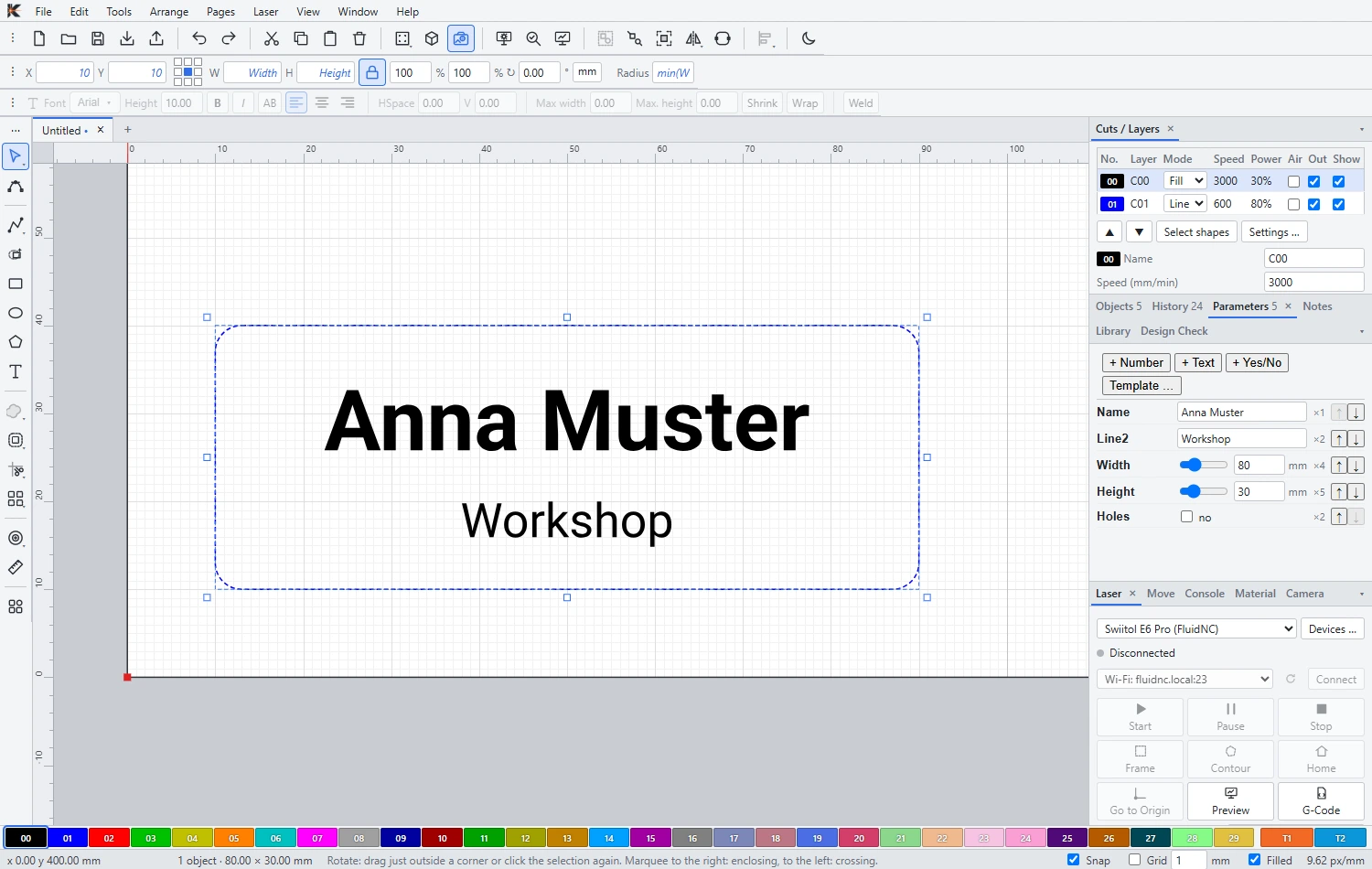
Edit → Visible If … shows and lasers an object only while a condition holds, such as Lid or Width > 100. These objects carry a ƒ in the Objects window.
Templates
A template is a project with parameters that asks for its values when you use it.
- File → Save as template … stores the current project as a template (
.kzt) with title, description and preview. You decide which parameters are asked, in which order, with which label and whether as a slider. Parameters that are not asked keep their value. - File → New from template … shows your templates. Picking one opens it as a new project with a fill-in dialog and a live preview. Cancel goes back to where you were.
- File → Fill in template … asks the values of the current project again.
KerfCut includes a key fob (the name shrinks to fit), a name tag (optional second line and holes) and a labelled box (a finger-jointed box with a label on the front). Templates from installed extensions appear under "From extensions".
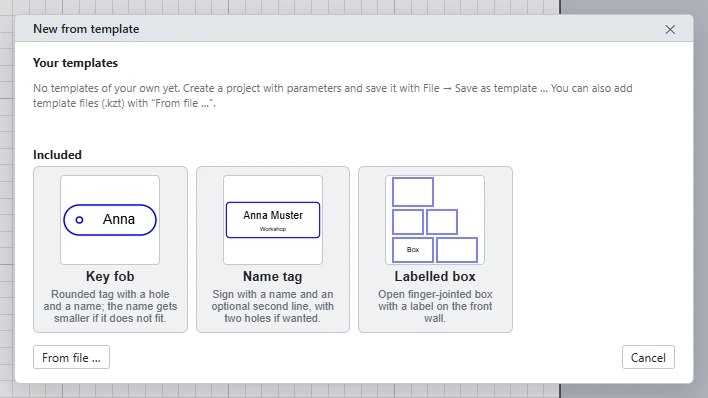
.kzt files can be added with From file … in the template dialog or by dragging them onto the workspace. To change a template, open it with File → Open …, edit it and save it as a template again. In the desktop app the templates live in the templates folder of the settings folder (Show folder opens it).
Series from a table
File → Series from table (CSV) … turns each row of a table into a copy of the current page with the values filled in, for example name tags for a whole class.
- Set up the design with parameters (for example
{Name}in a text). - Open the dialog and fill in the table: one column per parameter, one row per copy. You can paste cells from a spreadsheet, or import a CSV file.
- Choose a grid starting at the machine origin, one page per row, or Nest on stock sheets and open quote. For stock nesting, select the individual sheet passports to use. Each row stays together as a part. The quote uses the assigned sheets and their reusable offcuts. If the selected stock runs out, the dialog shows the number of rows still to place and keeps the table open.
The copies go onto new pages behind the current one, with the placeholders replaced. Your template page stays editable. The table is saved with the project, so a template can bring its own list. Columns are matched to parameters by name or chosen by hand; numbers may use a decimal comma, and yes/no columns accept 1, yes and x. One undo step.
For counters and dates on each job instead of a fixed list, see variable text.
Counter mode
File → Counter mode … opens the featured parameters and a preview for the current project. Fill in the fields and save the finished SVG. The export uses the template title and the first nonempty text field in the filename. The template returns to its previous values when the form closes.
Choose CSV batch … to run the series dialog from the same workflow. After generating the pages, KerfCut estimates machine time and energy for the batch and opens an editable quote. Grid and single-row layouts use a planned sheet count and unit price. Stock nesting uses each allocated passport and its actual stock value.
Toolbox
Tools → Toolbox … (also Window → Toolbox and the tile button in the tools toolbar) lists all generators and special tools as tiles. Groups include Mechanics, Boxes and Furniture, 3D slot-together models, Sketches with relations, Joints and Bending, Copy and Arrange, Text and Data, Sign making, Image, and Laser and Calibration. Choose Sign making for channel letters, LED modules, Neon Flex, weeding lines and Smart Divide.
- Search matches tool names, descriptions, keywords and group names in the interface language, English and German. Press Enter to open the first result.
- Favourites: right-click a tile to pin it at the top. Below the favourites are the three tools you used last.
- New tools carry a "NEW" badge until you use them once.
- If a tool needs a selection, the status bar says what to select.
Library
Window → Library keeps motifs, images and design elements for reuse, with previews, search and tags.
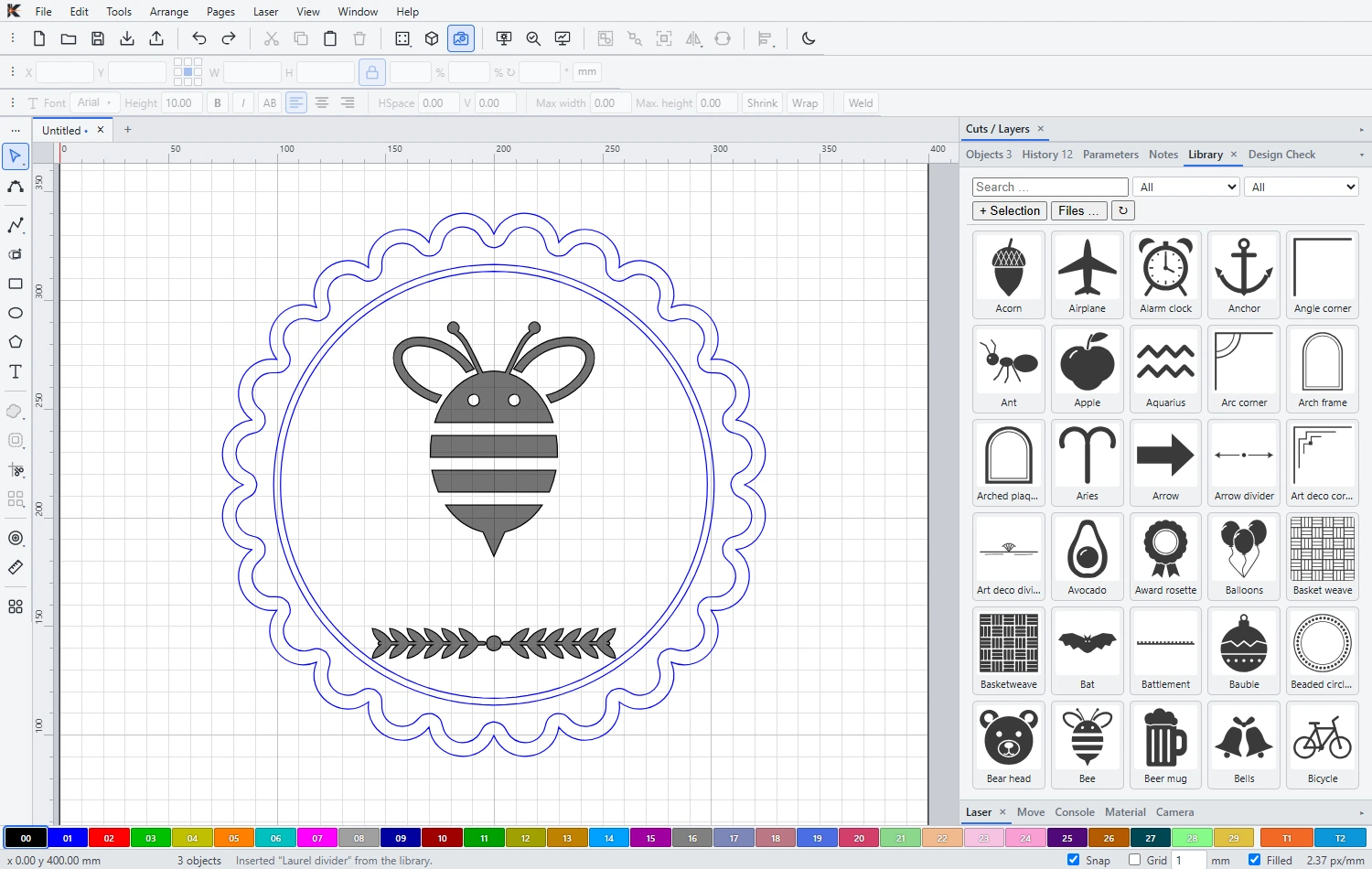
- + Selection (or Edit → Add to library …) stores the selected objects with name, type and tags.
- Files …, or dragging SVG, DXF, PDF, AI, image or
.kzafiles onto the window, adds files directly. - Double-click an item, or drag it onto the workspace, to insert it as a group. An item on a single layer lands on the current layer.
- Items can be renamed, retagged and exported as
.kzafiles to share.
KerfCut comes with 400 built-in items of its own design, ready to cut or engrave: 200 motifs (animals, plants, food, holidays, vehicles, tools, symbols, zodiac, space and more) and 200 design elements (frames, borders, corners, dividers, ornaments, badges, banners, patterns). All are closed vector paths. Built-in items cannot be changed; insert one and save it with + Selection to keep your own version.
The library also holds the patterns for pattern fill.
Review an artwork's attribution
Window → Library → Commercial-use artwork contains a CC0 maple leaf and an MIT hammer, bundled locally. Each tile shows the license. Select an item and open Artwork credits for its source, named author and full notice. The KerfCut originals group contains the project's own motifs, elements and fill patterns.
Open Window → Library → Curated import. Choose one or more local files. For each one, review its name, author, license and source. A source may be a catalog URL, a supplier reference or a local filename. An empty license is displayed as unknown. The catalog matches identical saved artwork even if its filename or title changes. It keeps the existing entry when it finds a match. Changes to a contour, a layer or a fill pattern produce a distinct entry.
The fields can be edited on your own items and searched in the library. Inserting an item retains its attribution on the project object. Exporting as KZA retains the attribution and millimetre dimensions for another installation.
Choose Import artwork catalog … for a reviewed KZP containing multiple assets. Reinstalling the same catalog detects existing items. Exporting placed artwork through File → Export → Export as SVG includes its declared author, source, license and notice in the SVG metadata. Sample catalog and exported SVG (ZIP)
Extensions
File → Extensions … installs packs (.kzp files) that add device presets, templates, material library entries and library items without a new version of KerfCut. A pack contains data only, never program code, and every entry is checked before it is installed.
- The catalogue in the same window lists the official packs: install or update with one click. The catalogue is signed, and every pack is checked against its checksum.
- Install … or dragging a
.kzpfile onto the workspace installs a pack from a file. The dialog lists the content and says whether it is an update. - Removing a pack removes its entries again.
See the list of extensions for what is available.