Import and export
Importing
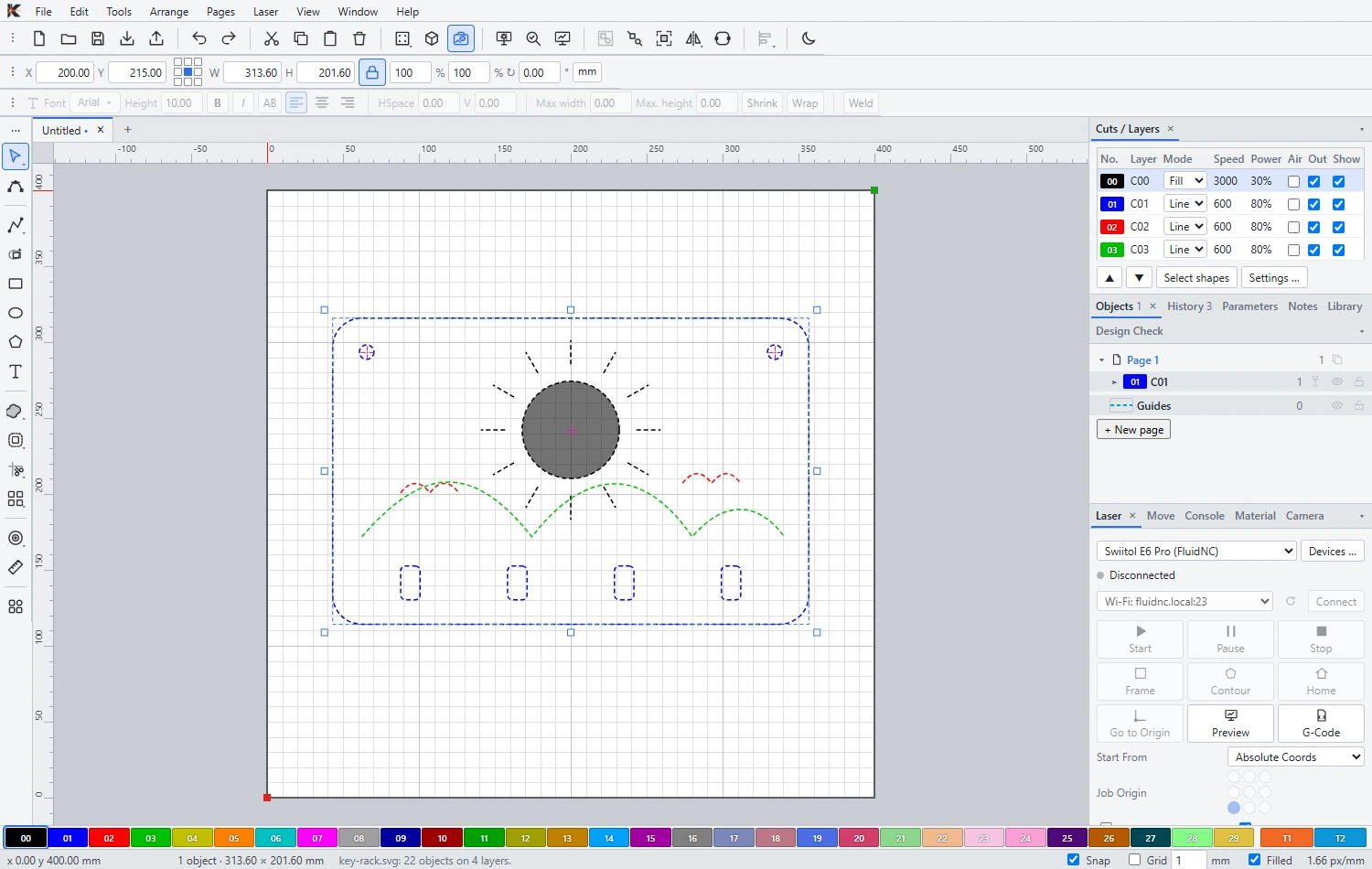
File → Import … (Ctrl+I), dragging files onto the workspace, or pasting with Ctrl+V from other programs all work the same way. Colours are mapped to the nearest palette colour, which means the nearest layer, and several objects arrive as a group.
SVG
Paths (including arcs), rectangles, circles, ellipses, lines, polygons, use references, transforms, CSS classes and embedded images. The size comes from width, height and viewBox. Text in SVG files is skipped: convert text to paths in your drawing program before saving.
DXF
Lines, polylines with arcs, circles, arcs, ellipses, splines and blocks, with the units stored in the file and true colours. Single lines that touch are joined into continuous paths, so a contour drawn from many segments can be cut as one shape.
PDF and Adobe Illustrator
Paths stay Bézier curves; RGB, CMYK, grey and spot colours map to layers; embedded images come along. Text becomes outlines from the fonts embedded in the file. Fonts that are not embedded are taken from your system or the font manager; if one is missing, KerfCut says which one was replaced.
The first PDF page lands on the current page, every further page on a new project page. Illustrator files from version 9 onwards work, because they contain a PDF version. PDFs that are only protected against editing can be imported; files that need a password to open cannot.
LightBurn projects
.lbrn2 files can be opened (File → Open, as a new project) or imported into the current project. Shapes, groups, images with their adjustments and positions are kept. Layers take over name, mode, speed, power, passes, output, order, fill and image settings, sub-layers, perforation, lead-ins, overcut, power ramp and Z settings. Text stays editable text when the font is installed; otherwise its outlines are kept as a path. Elements that could not be imported are listed in the status bar and in the design check.
LightBurn material libraries (.clb) can be imported in the material library.
3D models
STL and OBJ files become layered or rib models made of flat parts. KerfCut asks which one you want; see Generators.
Solid modeling and STEP
Open a .step or .stp file as a solid, or select closed 2D contours and open File → Solid modeling and STEP. Use extrusion, revolution, loft, or sweep to build a solid. Further operations can unite, subtract, or intersect a new solid with the current one. Fillets and chamfers apply to all edges of the current solid.
Loft uses the selected profiles in order, spaced evenly over the specified height. Sweep uses a closed cross section and an open path in the drawing plane. The studio reports the volume and previews a mesh. To capture different contours for the next feature, close the studio, select the contours, and reopen it.
Save Solid history as .kzsolid to store the editable sequence, including its captured 2D profiles and any imported STEP base. Reopen it inside the studio to edit dimensions and replay the operations. Export STEP writes the exact solid, while Use in 3D slicing generators passes a triangulated copy to the existing slicing tools.
Images
See Images and tracing.
Exporting
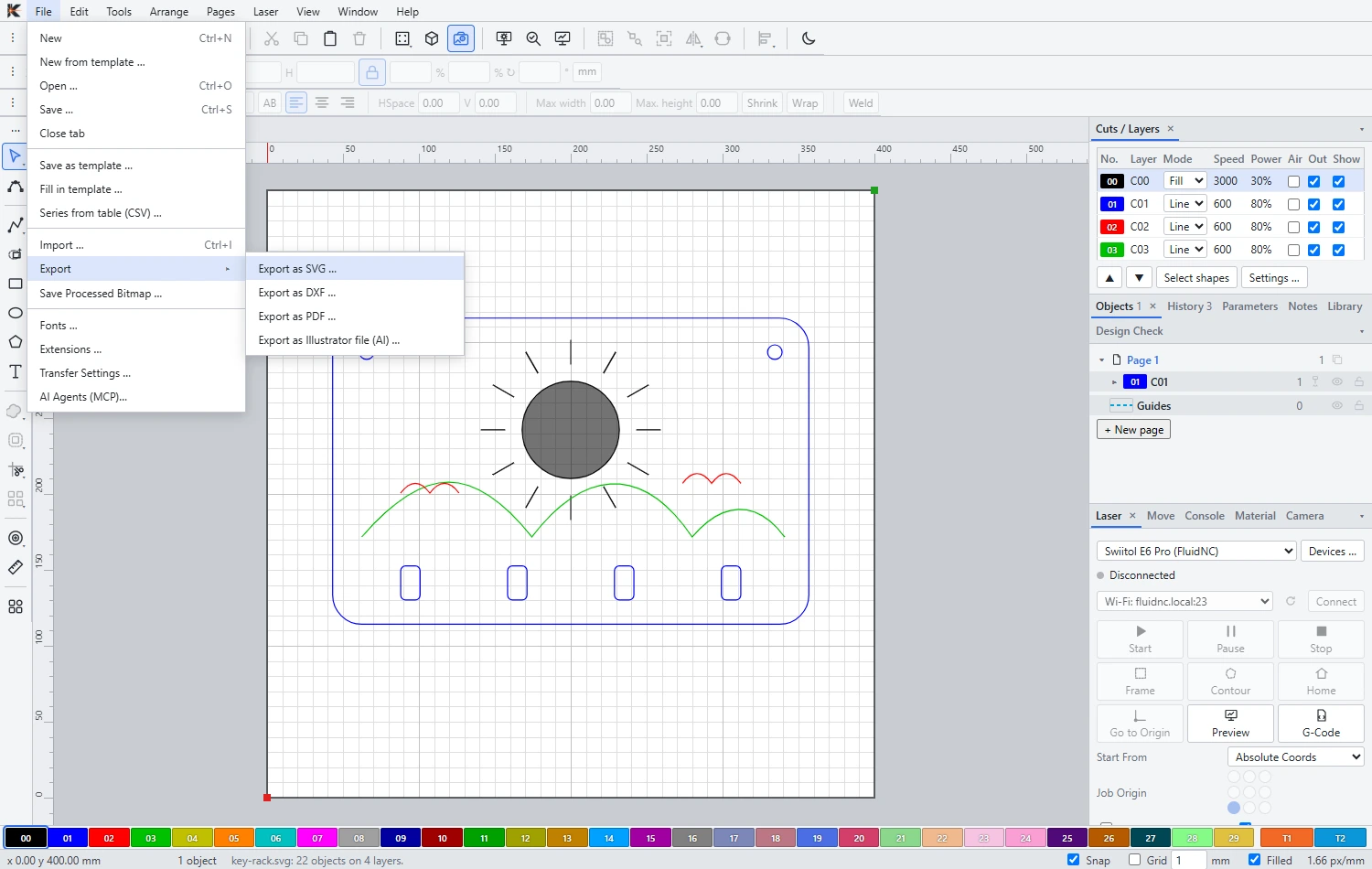
File → Export (also as toolbar buttons):
| Format | What is exported |
|---|---|
| SVG | The current page, with images. |
| DXF | The current page in mm, one DXF layer per used layer with name and colour. Curves are exported as exact splines. Images cannot go into DXF. |
| DXF R12 (mm) | The current page in millimetres as classic 2D polylines with indexed layer colours. Curves are sampled into vertices. Choose millimetres in the receiving CAD application. |
LightBurn (.lbrn2) | The current page in mm with vector paths, bitmap files embedded, and layer names, speeds, powers and basic process settings. |
| All pages, each at bed size 1:1, every layer as its own PDF layer, fill layers filled, images embedded. | |
Illustrator (.ai) | The same PDF-compatible file; opens in Illustrator, Inkscape and Affinity. |
Texts are exported as outlines.
DXF version and scale. The default DXF export uses AutoCAD 2000 (R2000) with $ACADVER=AC1015, $INSUNITS=4 (millimetres) and $MEASUREMENT=1 (metric). The R12 option writes AC1009 and preserves one millimetre per drawing unit. In the T25 tests, ezdxf 1.4.5 read a 100 × 100 mm plate with a 20 × 20 mm opening in both formats. The compensated files measured 100.20 × 100.20 mm outside and 19.80 × 19.80 mm inside. Autodesk DXF header reference
CorelDRAW documents DXF support including R2000. Ruida publishes the RDWorks V8 manual and software. To confirm compatibility with a specific build, import the nominal drawing at original size in millimetres and measure the two contours above. The outstanding workshop acceptance is a screenshot and version number from each application. CorelDRAW DXF import notes · Ruida download centre
The LightBurn export uses the lower-left origin. Open its preview and check the job before running it. The export skips disabled sublayers so they cannot become active in LightBurn. The exporter reports omitted operations such as corner power ramps and separate image contour cuts. Move single-line text to a line layer and objects with their own power settings to separate layers before exporting.
For two-sided work, use Pages → Production face to label the active page as A or B. The production ZIP carries the label in the filenames, manifest, assembly map and bill of materials. The geometry keeps its current orientation. Apply the required mirror or rotation in the editor before labeling the reverse face.
Production package and Salva-Pack
File → Export → Production package … saves a ZIP named for the project and revision. The manifest lists the units, coordinate origins, sheet passports, device profile, layer settings and SHA-256 hashes. The package contains the nominal sheet drawings, a parts CSV, engraving bitmaps and a PDF in project-page order. If the project contains a generated assembly plan, its page appears in that PDF.
The assembly map preserves the sheet scale. The numbers on the drawing match piece_id in the CSV. PDF viewers with layer controls can switch off the ID - CSV overlay and show individual operation layers. Assembly notes on non-output layers can use the built-in single-line font when the original outline font is unavailable.
After Print & Cut alignment, the manifest stores the cumulative per-page transform in printRegistration, alongside the last fit mode, number of marks and maximum residual in mm. Coordinates start at the top left, with X to the right and Y down. Exported coordinates already include the alignment. An unregistered page has a null transform.
The parts CSV records the project page and, when assigned, the sheet passport ID and revision. It flags pieces outside the bed and pieces whose passport allocation has become stale. Maximum dimensions include the full geometry as placed. Useful dimensions describe the body where the model provides those dimensions, as it does for structural parts of the travel safe. Blank useful dimensions indicate missing measurements.
The separately named compensated drawings contain line contours. An operation that consumes a compensated drawing must use zero additional kerf. When one layer uses different offsets for multiple line passes, the manifest records that only the nominal drawing was exported for that page.
File → Salva-Pack processes a batch of vector SVG and DXF files. Choose the nominal slot width, measured thickness and tolerances. It connects nearby ends, removes matching duplicate contours and adjusts the detected slots. The result ZIP includes a report for each source and the count of paths left open. Originals remain available for comparison.
G-code
Laser → Save GCode … writes the job of the current page for the selected device, exactly as it would be sent to the laser, including custom G-code scripts of the device. Use this to run jobs from an SD card or another sender.
Transferring settings
File → Transfer Settings … exports settings, devices, material library, library, templates, extensions and window layout into one .kzs file, as a backup or for another computer. See Customizing and settings.